Inviting Participants to Your Research
Updated: October 1, 2026
After creating and testing your research outline, you're ready to invite participants. Perspective AI gives you a public conversation link for broad distribution and a Send flow for targeted outreach by email, Slack, WhatsApp, or phone.
To find this page, open a Perspective and select Invite participants. In Design, use Next: Invite participants after an outline exists; on other Perspective pages, use the Invite participants button in the header.
To reach a list over several days with follow-ups, ask the design agent to run an Outreach Campaign instead (Beta).
Invitations created through the participant invite MCP tooling can also carry per-participant context — trusted attributes such as CRM data, entitlement flags, or prior-conversation references that travel with the invite and reach the agent without appearing in the URL. See Track Input Params and Conversation Context for when to use invite context vs. URL parameters vs. outline knowledge.
Prerequisites
Before inviting participants, ensure you have:
- A finalized research outline
- Tested the interview experience yourself
- Made any necessary refinements based on your test
- Confirmed whether participants need to sign in, whether anonymous access is allowed, and which auth providers are accepted. These options live in the conversation settings. See Conversation Settings.
Invitation Methods
Method 1: Share the Conversation Link
Use this method when you want to:
- Share participation opportunities publicly via your website or social media
- Include the link in large email campaigns through platforms like HubSpot or MailChimp
- Allow open enrollment without managing individual invitations
- Add your own source or campaign parameters to the URL
Steps:
- Open the Perspective's Invite participants page
- Copy the conversation link shown in the share preview
- Share the link through your chosen channels
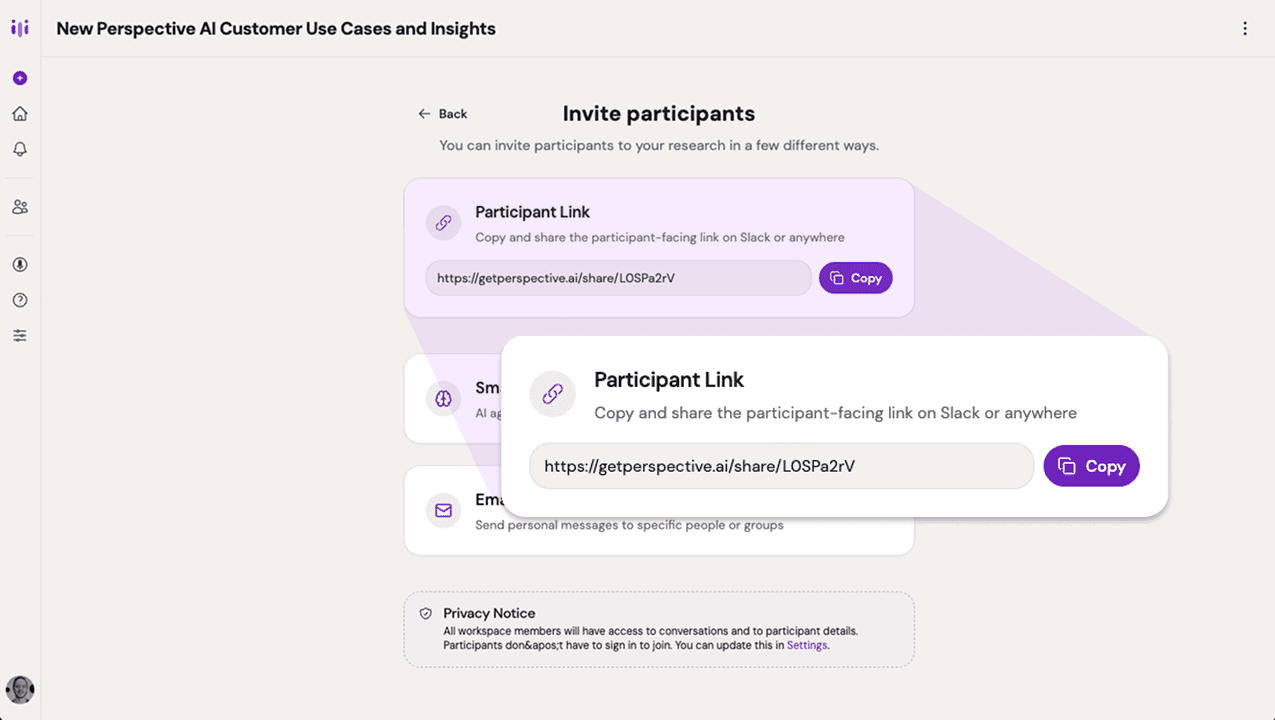
Link invitation URL
The public link respects your conversation access settings. If the conversation requires sign-in, participants will be asked to authenticate before joining. If anonymous access is allowed, participants can start without creating an account.
To personalize or attribute public links, append URL parameters:
See Track Input Params for how these parameters are stored and used.
Let Participants Answer Through an AI Assistant
For a conversation that allows anonymous participants, share the regular conversation link with someone who wants to answer through Claude or ChatGPT. They can paste it into their assistant without adding /agent or installing anything. Perspective recognizes requests from supported assistants and directs them to the assistant version of the conversation. The assistant version tells it what the conversation is about and who is asking. It can answer what it already knows and ask them directly when it needs an answer. The resulting conversation appears in your workspace with the assistant identified.
You can also share the direct AI assistant link shown with the conversation link or included in invitation emails. Use that link if the regular link opens the standard conversation page in an assistant.
This option is available only when the conversation allows anonymous participation. For a conversation that requires sign-in, share the regular conversation link so the participant can answer directly.
Assistant Links and Response Formats
The regular link at /interview/<agent-id> redirects recognized assistant requests to /interview/<agent-id>/agent; people opening it in a browser see the regular conversation page. A regular /share/<agent-id> link also leads to the interview link. Client detection depends on the request, so use the direct /agent link for an assistant or custom client that receives the regular page. A link under /share/<agent-id>/agent redirects to the same assistant page. The assistant page says what the conversation is about and gives the client the exact URL to start. Reading it does not open a conversation or use a credit. Following the start URL opens a recorded conversation and consumes a credit. Each question page after that is only the current question and the request that sends the answer.
- The
/agentpage and subsequent questions return HTML by default. The response format is selected there after a recognized assistant follows the redirect from the regular link. - Add
?format=mdto the assistant link, as in/interview/<agent-id>/agent?format=md, to get raw Markdown. The same parameter works on later question URLs; use&format=mdif the URL already has?a=. This is the reliable choice when a client sends both HTML and Markdown in itsAcceptheader. - A custom client can request only
text/markdown,text/plain, orapplication/jsonin itsAcceptheader to receive that format instead.
An assistant connected to the Perspective MCP server can take part with the perspective_participate tool instead of fetching URLs. The conversation then belongs to the signed-in person's account rather than being anonymous, and a conversation that requires sign-in accepts it.
Each question supplies the URL for the next answer. A client can fetch it with the answer URL-encoded in ?a=, or send an answer over 4,000 characters as JSON to the supplied POST URL with Content-Type: application/json and a body such as {"answer":"..."}. It should follow the URLs the page supplies rather than construct its own. Custom clients may add an optional src query parameter to a GET answer URL or a src field to a POST body: user_verbatim, from_context, or inferred. This source is reported by the assistant and is not verified by Perspective.
Method 2: Email Invitations
Use this method to invite specific individuals directly from Perspective AI.
Steps:
- Open the Perspective's Invite participants page
- Select Send
- Choose Email
- Add participants using one of three options:
- Manually enter email addresses – Type or paste individual email addresses. The picker accepts plain emails and
Name <email@example.com>entries separated by commas or new lines. - Import from past research – Select the generated group for a previous conversation's participants.
- Select a custom group – Choose from saved participant groups. See Participant Groups.
- Manually enter email addresses – Type or paste individual email addresses. The picker accepts plain emails and
- Move to the Compose Message step
- Review the auto-generated subject line and message
- Edit the invitation text if needed to match your tone or add context
- Click Send to my inbox to preview how the invitation will appear
- When satisfied, click Send Invitation
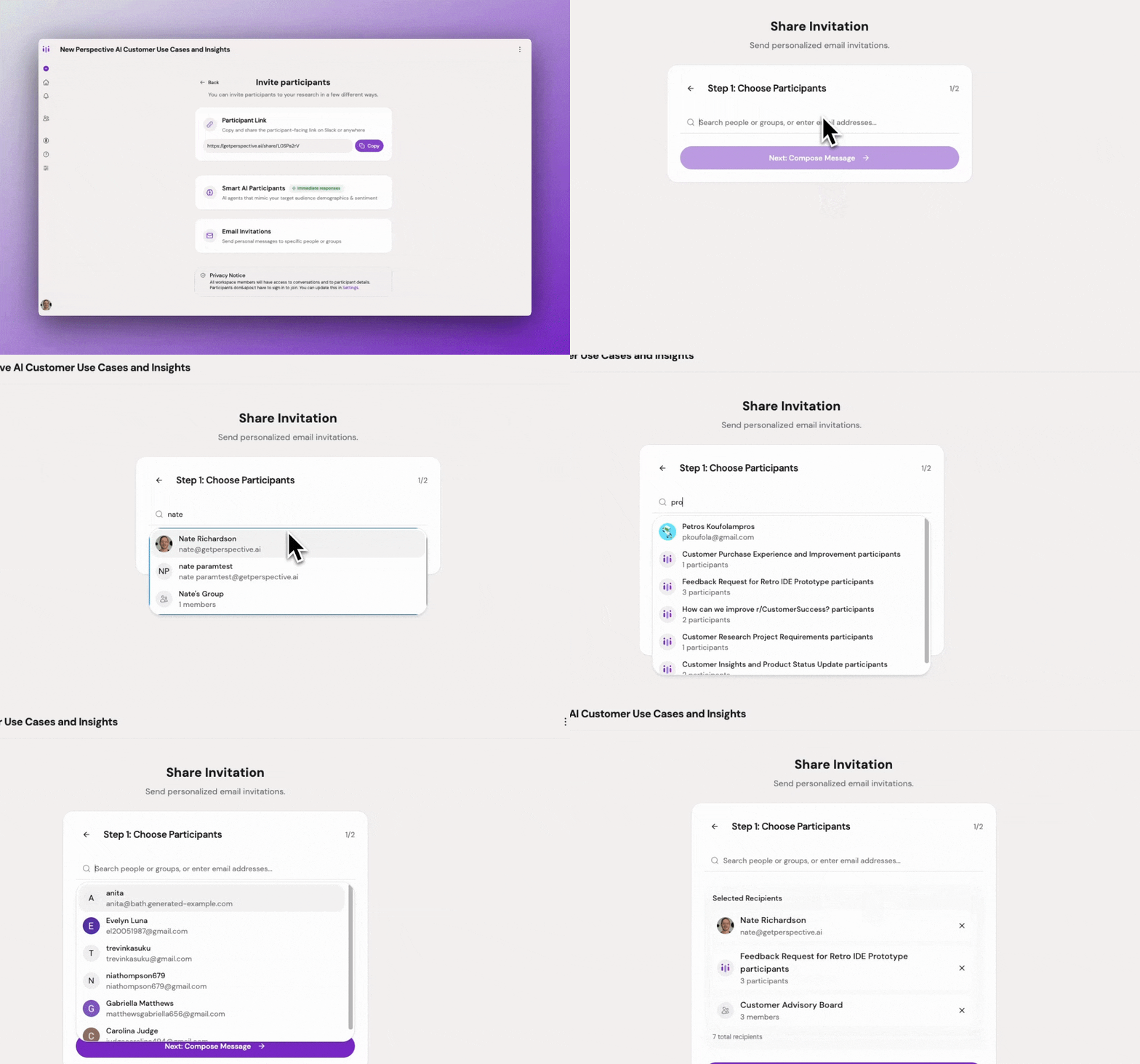
Email invitation interface with participant selection
Email invitations create invite records with participant-specific links. When you send a group, Perspective expands the group into individual email recipients and deduplicates addresses for that send.
Method 3: Slack Invitations
Use Slack when the people you want to reach are already in a workspace channel.
Steps:
- Open the Perspective's Invite participants page
- Select Send
- Choose Slack
- Connect Slack if prompted
- Search for and select a channel
- Compose the message
- Click Post to Channel
Perspective posts a channel message with options to start the conversation in Slack or open it in the browser. Channel search checks the full Slack workspace, including large workspaces with thousands of channels. If Slack needs to be reconnected, reconnect the integration and click Retry in the picker.
If no channels appear, add the Perspective bot to the Slack channel first and refresh the channel list.
See Slack Integration for how participants take conversations in Slack, how to get notified when conversations finish, and how to turn it off or uninstall it.
Method 4: WhatsApp Invitations
Use WhatsApp when you want to reach participants by phone number but still have them complete the conversation asynchronously.
Steps:
- Open the Perspective's Invite participants page
- Select Send
- Choose WhatsApp
- Add phone numbers
- Compose the message
- Send the invitations
After sending, Perspective shows which numbers were delivered and which failed. Delivery depends on the recipient phone numbers being valid.
Sending from your own number
By default, invitations go out from Perspective's WhatsApp number. To send from your own business number instead, open Settings → WhatsApp and select Connect WhatsApp. You sign in with Meta and pick the number you already use — the WhatsApp Business app keeps working on it.
Meta reviews the invitation message for each language before it can be sent, which usually takes up to a day. Submit the languages you need ahead of the invitations you plan to send. The WhatsApp section shows where each language stands, and invitations in a language still under review are held until it is approved.
Method 5: Phone Calls
Use phone when you want the AI agent to call a participant immediately.
Steps:
- Open the Perspective's Invite participants page
- Select Send
- Choose Phone
- Enter a valid phone number
- Click Call
Perspective creates a conversation record, places an outbound call, and monitors the call status. Once the call connects or finishes, you can open the conversation from the call result.
Phone calls use voice-specific behavior. The agent skips questions that do not fit spoken conversation, such as asking someone to spell an email address, and can use the caller ID phone number as participant context when available. It also treats quick acknowledgments and speakerphone echo differently from text chat so calls feel more natural.
Understanding Auto-Generated Messages
Perspective automatically creates invitation subject lines and messages based on your research context, including:
- The research topic and goals
- The target participant profile
- The estimated time commitment
- What participants can expect from the interview
While these messages are ready to send as-is, you can customize them to:
- Match your brand voice
- Add specific context about timing or incentives
- Include additional instructions or requirements
Email is the only channel with a subject line. Slack and WhatsApp use the message body, and phone calls use the conversation's greeting and voice settings.
Access, Identity, and Context
Before launching, confirm how participants should be identified:
- Anonymous conversations let anyone with the link start.
- Sign-in required conversations ask participants to authenticate through the accepted providers you selected.
- Email invitations include recipient identity and a signed invite token.
- Slack conversations can include Slack profile metadata when a participant starts in Slack.
- Public links and embeds can carry URL parameters for source, campaign, plan, role, or other lightweight context.
- MCP-created invitations can attach trusted invite context that stays server-side and overrides URL parameters with the same key.
For setup details, see Conversation Settings, Input Params, and Track Input Params.
Best Practices
Test before sending. Always send yourself a test invitation to ensure the message is clear, the link works, and the timing expectations are accurate.
Choose the right method. Use links for broad reach and lower-touch recruiting. Use email invitations when you need participant-specific links. Use Slack for workspace channels, WhatsApp for phone-number outreach, and phone calls for immediate voice conversations.
Personalize when possible. If using email invitations, consider editing the message to acknowledge the specific group or their relationship to your product.
Set clear expectations. Make sure participants understand how long the interview will take and what they'll be discussing.
Track your invitations. Monitor response rates and follow up with non-responders if needed, especially for targeted email campaigns.
Use parameters for attribution. Add source, campaign, segment, or similar URL parameters when sharing public links or embeds so you can compare response quality by channel.
Check channel prerequisites. Slack requires a connected Slack workspace and bot access to the target channel. WhatsApp requires the workspace's WhatsApp delivery setup. Phone calls require valid E.164 phone numbers.
Common Pitfalls & Fixes
Link shared too broadly: Public links can attract participants who don't match your target profile. Use email invitations or add screening questions to ensure fit.
Generic invitation message: Auto-generated messages are a starting point, but personalizing them can increase response rates. Add context about why you're reaching out to this specific group.
No test email sent: Always preview your invitation before sending to participants. Typos and formatting issues are easier to catch in a test.
Forgetting about past participants: Re-engaging participants from previous research saves time and keeps context across studies. Use the "Import from past research" option to reconnect.
Unclear time commitment: If participants don't know how long the interview takes, response rates drop. Ensure the auto-generated message includes this detail, or add it manually.
Slack channel not listed: The bot may not be in that channel, or the Slack connection may need refreshed permissions. Invite the bot to the channel, use search, and click Retry after reconnecting Slack.
WhatsApp delivery failures: Check that each number is valid, includes the right country code, and can receive WhatsApp messages from your connected sender.
Phone call does not connect: Confirm the number is valid and reachable. Perspective shows terminal states such as no answer, busy, voicemail, failed, connected, or completed so you can tell whether to retry, follow up another way, or review the transcript.
What Happens Next
Once invitations are sent, participants receive the invitation through the selected channel. As they complete conversations, you'll see results appear in your research dashboard.
Monitor incoming interviews and review form fields and summaries to track progress toward your research goals.