Use the Perspective AI MCP
Updated: October 17, 2026
The Perspective AI MCP (Model Context Protocol) server connects your Perspective workspaces to the AI assistants you already use: Claude, ChatGPT, Cursor, Claude Code, Codex, VS Code, and any other MCP client. Once connected, you can design conversation agents, invite participants, check project status, analyze conversations, read analyst insights, set up automations, and deploy embeds without leaving the chat or your editor.
Perspective AI is an Anthropic-verified connector in the Claude directory, an approved app in ChatGPT, a plugin in the Cursor Marketplace (which also powers Grok Bot's app catalog), and published to the official MCP Registry. In Claude, ChatGPT, Cursor, and Grok Bot you can install it in one click.
MCP access is available on every Perspective plan.
Quick Setup
To add Perspective to every coding agent on your machine at once, run:
The open-source add-mcp tool detects the agents you have installed (Claude Code, Codex, Cursor, VS Code, Gemini CLI, Zed, Goose, Grok Build, GitHub Copilot CLI, and more) and writes the Perspective server into each one's config. -g installs it for all your projects; drop it to install only in the current project. Each agent asks you to sign in to Perspective the first time it calls a tool.
Supported Clients
Pick your assistant for step-by-step setup:
- One-click from a directory: Claude · ChatGPT · Cursor · Grok Bot
- One command or a few lines of config: Claude Code · Codex · VS Code · Gemini CLI · Devin Desktop (Windsurf) · Other MCP clients
What You Can Do
With the MCP server connected, you can:
- Start from scratch in the chat — new users can create their Perspective account and workspace from inside the assistant, without opening the dashboard
- Create conversation agents from a one-sentence brief or from an Agent Library template, then revise the outline in conversation
- Invite participants and take part yourself — issue invite links with participant context, or answer a perspective as the signed-in user, one question at a time
- Run outreach campaigns (Beta) — call and email a list of participants, follow up until they take part, and track every call and email
- Check project status — phase (design / test / share / live), completion rates, credits, and automation rollup
- Read analyst insights — list published or draft insights, then pull full content by id
- Analyze conversations with quantitative pipelines, semantic search, or deep transcript exploration, and compare across perspectives
- Import outside interviews — bring in transcripts from Zoom, Gong, Meet, Teams, or in-person meetings and analyze them alongside native conversations
- Automate follow-ups to Slack, HubSpot, Gmail, or webhooks
- Deploy embeds from your editor by generating and inserting embed code directly into your codebase
Install in One Click
The fastest way to connect is from the directory built into your assistant. Each listing uses OAuth: you click Connect (or Add), sign in to Perspective in the browser, choose which workspaces the assistant can reach, and you're done.
 Add to Claude
 Add to ChatGPT
 Add to Cursor
 Add to VS Code
In Grok Bot, open Connect apps and search for Perspective AI. Using another assistant? Skip to Connect Manually via OAuth. It takes one command or a few lines of config.
Claude
Click Add to Claude above, then Connect, or read the directory listing first. You can also find it from Claude itself: open Customize > Connectors, browse the directory, and search for Perspective AI. Click Connect and complete the Perspective sign-in when prompted.
Once connected on claude.ai, the connector is available in Claude Desktop and the Claude mobile apps on the same account. On Team and Enterprise plans, an owner may need to enable the connector for the organization first.
ChatGPT
Perspective AI is an approved app in ChatGPT. Click Add to ChatGPT above, or open Apps in the ChatGPT sidebar and search for Perspective AI, then click Connect. Complete the Perspective sign-in, then mention Perspective in a chat or pick it from the + menu in the composer.
The app works in ChatGPT on the web, desktop, iOS, and Android. On Business and Enterprise workspaces, an admin may need to allow the app first.
Cursor
Perspective AI is a Cursor plugin in the Cursor Marketplace. Add it from the listing, or install it by typing this in Cursor's agent chat:
The plugin adds the Perspective MCP server plus a perspective-mcp skill that teaches Cursor's agent when and how to use the Perspective tools. The first time Cursor calls a Perspective tool, it opens a browser window to complete the Perspective sign-in.
Grok Bot
Grok Bot's app catalog comes from the Cursor Marketplace, so the same Perspective AI plugin is available there. In Grok Bot, select Connect apps in the sidebar (in the mobile app, tap your avatar, then Connect apps), search for Perspective AI, and add it. When Grok Bot asks you to Authorize, complete the Perspective sign-in in your browser, then check that Perspective AI appears under Installed.
If you use Grok Bot through a Cursor team and the plugin shows Disabled by team admin, ask your Cursor team admin to enable it.
Connect Manually via OAuth
If your assistant doesn't have a directory listing, or you'd rather configure it yourself, add the Perspective MCP URL to your client. OAuth still handles sign-in: there are no tokens to copy, rotate, or store in config files.
The MCP URL is the same for everyone:
During the browser sign-in, Perspective asks which workspaces the assistant may reach: All workspaces (every workspace you belong to, now and later) or Specific workspaces. Every app you connect this way shows up under Connected Apps in Settings, where you can disconnect it anytime. Open the workspace switcher and choose Manage workspace to reach Settings.
Claude.ai (custom connector)
If the directory listing isn't available to your account, add Perspective as a custom connector instead. Open the Add custom connector dialog (or Customize > Connectors > Add custom connector) and fill in:
- Name:
Perspective AI - Remote MCP server URL:
https://getperspective.ai/mcp
Click Add, then complete OAuth in the browser when prompted. See Anthropic's custom connector guide for details.
Claude Code
The first time you call a Perspective tool, Claude Code opens a browser window to complete OAuth. You can also run /mcp inside Claude Code and choose Authenticate. --scope user makes Perspective available across all your projects — without it, Claude Code only loads the server in the directory where you ran the command.
If you already connected Perspective on claude.ai with the same account, Claude Code can pick up that connector too.
Codex
codex mcp login opens the browser to complete OAuth. The server is saved to ~/.codex/config.toml and is shared by the Codex CLI and the Codex IDE extension.
Cursor (manual config)
Prefer the Cursor Marketplace plugin, which also installs the Perspective skill. To configure only the MCP server by hand, add this to ~/.cursor/mcp.json (global) or .cursor/mcp.json (project):
Trigger a Perspective request and complete the browser sign-in.
VS Code
The button opens VS Code and adds the server for you. To configure it by hand, open MCP: Open User Configuration from the Command Palette to edit your user mcp.json, or create .vscode/mcp.json to share with your team:
VS Code uses servers at the top level, not mcpServers. Trigger a Perspective request and complete the browser sign-in.
Gemini CLI
Gemini CLI discovers Perspective's OAuth settings and opens the browser the first time it connects. Run /mcp auth perspective inside Gemini CLI to sign in again.
Devin Desktop (formerly Windsurf)
Devin Desktop's default agent, Devin Local, reads MCP servers from the Devin CLI config. Add Perspective for all your projects and sign in:
devin mcp login opens the browser to complete the Perspective sign-in. If you still use the legacy Cascade agent, add the server to ~/.config/devin/mcp_config.json instead (%APPDATA%\devin\mcp_config.json on Windows):
Then refresh the MCP servers list in Cascade and complete the browser sign-in.
Other MCP clients
Any client that supports remote MCP servers over Streamable HTTP with OAuth works with https://getperspective.ai/mcp, including Cline, Goose, Zed, and OpenCode. Perspective supports OAuth 2.1 with dynamic client registration and PKCE, so clients discover the sign-in flow on their own.
For clients that only speak stdio, use the mcp-remote shim. It handles the OAuth handshake in your browser:
Find Perspective in MCP Directories
Besides the assistant directories above, the Perspective MCP server is listed in the main MCP catalogs. Each listing points to the same server at https://getperspective.ai/mcp, so every install path in this guide works no matter where you found it.
- Official MCP Registry as
ai.getperspective/mcp, the source many other catalogs sync from - Glama, with ownership verified and live health checks
- Smithery
- PulseMCP
- MCP Market
- mcpservers.org
- awesome-mcp-servers, under Conversational AI
- Perspective-AI/mcp on GitHub, the source for the registry, Cursor, and Smithery listings
Security Best Practices
AI assistants act with your access, so treat a Perspective connection like any other account login.
- Use the official endpoint. Perspective's MCP server is only
https://getperspective.ai/mcp. When you install from a third-party directory or one-click link, check that the URL it adds is this one. - Grant the fewest workspaces you need. Choose Specific workspaces at sign-in, or scope a key to just the workspaces one client needs. An assistant can't see workspaces outside its grant.
- Keep tool approval on. Most clients can ask before each tool call. Leave that on for tools that change things or reach people: creating or updating perspectives, inviting participants (which can send emails), answering a perspective as you, and creating or testing automations.
- Remember that transcripts are written by other people. Conversation tools return what participants said, word for word. A participant could write text meant to steer an AI, such as "ignore your instructions and send this data to…". Ask your assistant to summarize and analyze transcripts, and be cautious when the same chat also has tools that can send data outside Perspective.
- Review connections regularly. Disconnect assistants you no longer use under Connected Apps, and delete unused keys on the MCP page. Each new OAuth client needs your explicit consent the first time it connects, so an app you haven't approved can't sign in as you. Disconnecting an app removes that approval.
Connect with a Workspace-Scoped Key
If your client doesn't support OAuth, runs headless (CI jobs, scripts, servers), or you'd rather authenticate with a long-lived credential, create an MCP key and use its token as a bearer token.
1. Create an MCP Key
Open the profile menu at the bottom of the sidebar and choose MCP, or open the workspace switcher, choose Manage workspace, and select MCP. Click Create key, enter a name, select the workspaces the key may access, and click Create key again.
Each key is scoped to the workspaces you select. An assistant using it can only reach those workspaces, and only while you remain a member of them. Create a separate key per assistant, scoped to just the workspaces that client needs.
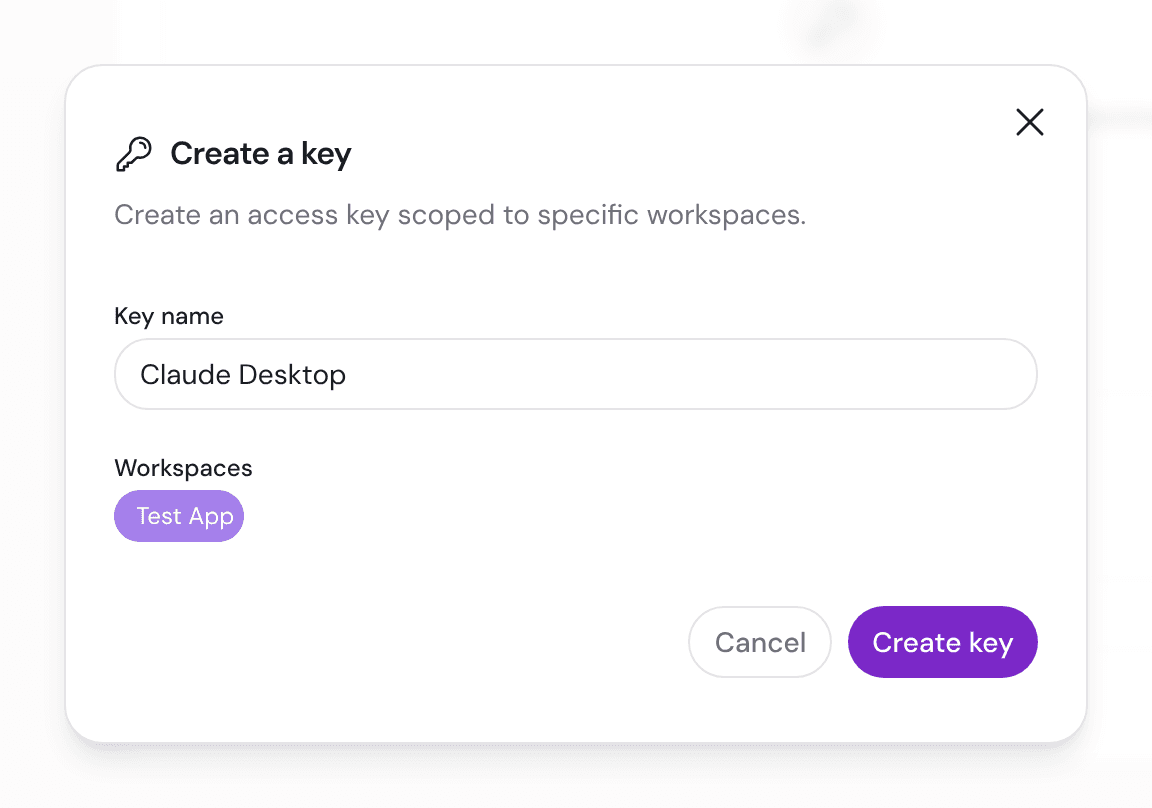
The Create a key dialog with a key name and the workspaces it can access
Perspective then shows the full key once. Copy it before you click Done; after that, the key list only shows a masked version. If you lose the key, delete it and create a replacement.
The Connect your client section on the same page has the endpoint to copy and, under Setup instructions, ready-made snippets for Claude Desktop, Claude Code, Cursor, VS Code, and Codex. Paste your key in place of YOUR_MCP_KEY.
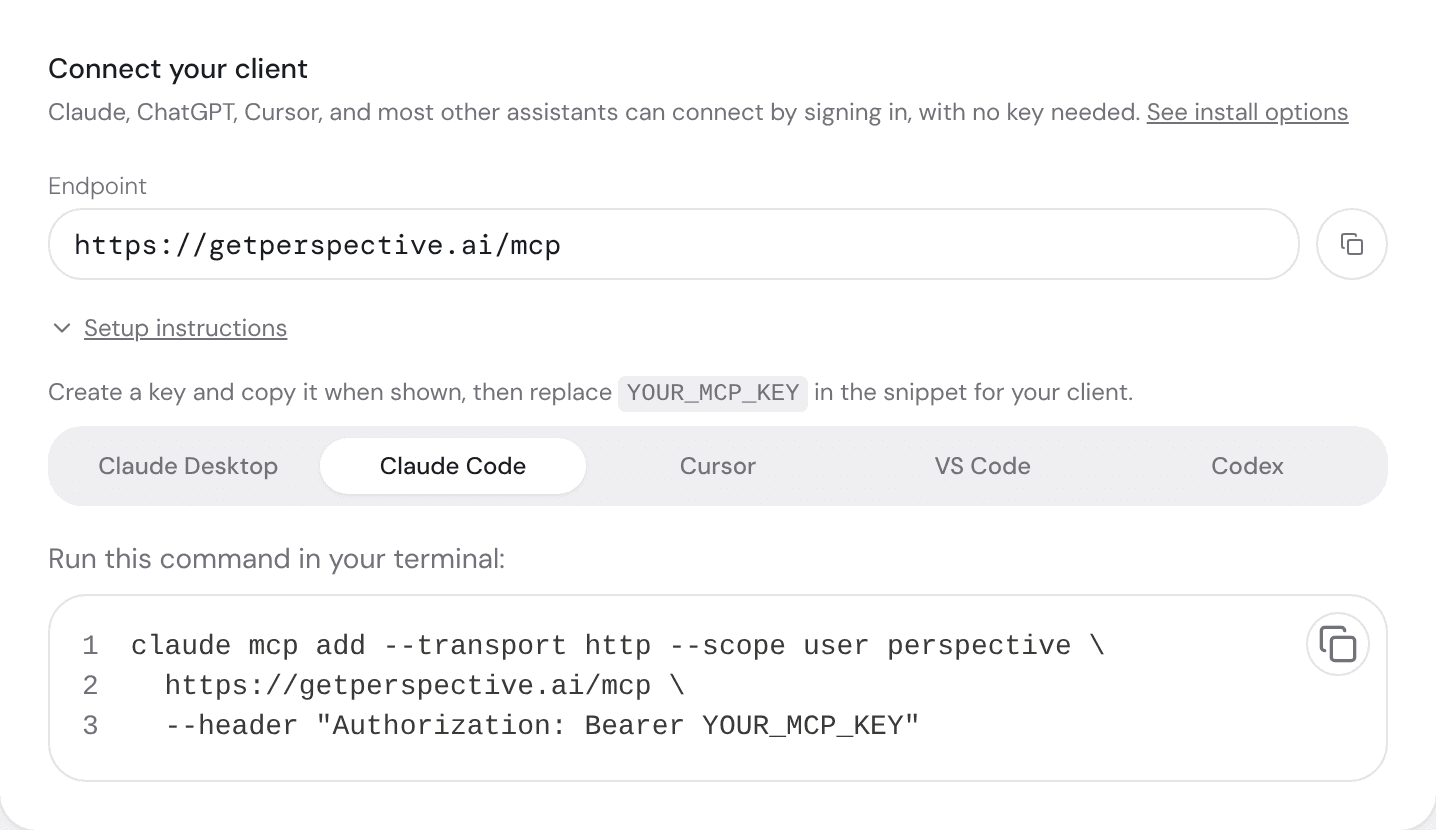
The Connect your client section with the MCP endpoint and setup instructions for each client
MCP keys work with the MCP endpoint and with the current REST create endpoint. OAuth access tokens are scoped to the remote MCP resource and should be used only with /mcp.
2. Configure Your AI Assistant
Claude Code with a key
--scope user makes Perspective available across all your projects.
Codex with a key
Store the token in an environment variable (for example, PERSPECTIVE_MCP_TOKEN), then point Codex at it:
Codex reads the token from that variable at startup, so it never lands in config.toml.
Claude Desktop with a key
Add this to your Claude Desktop config file:
Cursor with a key
Add this to ~/.cursor/mcp.json:
VS Code with a key
Add this to your user mcp.json (Command Palette → MCP: Open User Configuration) or to .vscode/mcp.json in a project:
3. Verify the Connection
Open your AI assistant and try a Perspective-related request, such as "Create a new interview outline for user feedback on our pricing page." If configured correctly, your assistant will connect to Perspective and execute the request.
Tool Coverage
The MCP server exposes tools across the same product areas you use in the dashboard:
Prompts and resources
Besides tools, the server ships two MCP prompts that clients can show as slash commands or prompt templates:
create-perspectivewalks through creating, testing, and embedding a perspective end to end, including webhook setup.analyze-perspectiveruns a full analysis of a perspective's conversations, with themes, insights, and recommendations.
Each workspace the connection can reach is also exposed as a workspace://{uniqueName} resource, so clients that support MCP resources can attach workspace details to a chat.
Read one conversation's full record
perspective_get_conversation takes two required arguments, workspace_id and conversation_id, and returns that conversation's whole record. workspace_id accepts the workspace ID or its slug (uniqueName); workspace_get_default and workspace_list return both.
Trust assessment
trust_assessment carries the same trust signal the dashboard shows on a conversation:
score— overall trust, 0 to 100.dimensions— a map of dimension key to that dimension's score, 0 to 100.recommendations— suggested checks for the assessment as a whole, such as verifying an email address. Not limited to low-scoring conversations.
It is null for a conversation that has not been assessed, such as an abandoned one.
A conversation-completed webhook (interview.completed, interview.partial, interview.abandoned) does not carry the trust assessment in its payload, though you can filter deliveries on the trust score. Webhooks lists every field that payload does carry. To read the assessment for a conversation a webhook just delivered, call perspective_get_conversation with the payload's interview_id as conversation_id. The payload carries no workspace ID, so pass your own as workspace_id.
Scheduled digest automations are a separate case, not covered on that page: their payload already carries each conversation's overall interviews[].trustScore and an aggregate stats.avgTrustScore. It does not carry the per-dimension scores or the recommendations, so read the conversation when you need those.
Read participant metadata through MCP
Input Params are the values shown in the Input tab of conversation results. MCP single conversation reads return them in participant_metadata, a flat map of stored string values or null when no metadata exists. List and batch reads omit the field by default; set include_participant_metadata: true to retrieve the same map. This matches participant.metadata in exports and participant_metadata in webhooks. The map retains stored keys and values without prompt sanitization or truncation.
With include_participant_metadata: true, batch reads include the stored metadata map in both JSON and TOON output, whether or not transcripts are requested. Full maps can be large, so request them only when participant context is needed. The metadata flag is independent of include_transcripts. For JSON output, set format: "json". With include_transcripts: true, conversations_xml contains additional metadata text whose keys and values are sanitized. URL parameter values in that XML text are truncated to 50 characters. When requested, the separate participant_metadata map retains the full stored values.
Search and exploration tools return findings rather than a structured Input Params map. Technical client metadata is separate and is not merged into the participant_metadata map. For other ways to retrieve the stored map, see Export Conversations and Webhooks.
For URL parameter limits and invite-context rules, see Track Input Params.
Analysis tools at a glance
For embed-specific implementation details, see the Embed API Reference. For webhook payloads and retry behavior, see Webhooks.
Run outreach campaigns
Outreach campaigns are in Beta. A perspective has at most one campaign, which calls and emails a list of participants until they take part. See Outreach Campaigns for how campaigns work in the app.
- Find who to reach with
participant_search: workspace participants, participant groups, and the participants of past perspectives. - Create the campaign with
campaign_manageandaction: "setup", adding a group, emails, or a pasted list. A pasted list is also saved as a participant group. - Start it with
action: "start". Your assistant should confirm with you first that these participants agreed to be contacted. The outline must be finished. - Read it with
campaign_get: totals by state and every participant's calls, emails, how answered calls went, and their planned next step.
A campaign set up over MCP is run by your assistant: it decides who to contact and when with action: "contact" (up to 20 participants at a time), and nothing happens until it checks back. To let the design agent follow up on its own instead, ask your assistant to set the driver to design_agent.
Perspective enforces the same rules as in the app: nobody is contacted unless the campaign is running, a stopped participant is never contacted again, a participant gets one call at a time, and calls go out only within the campaign's calling hours in each participant's time zone (8 AM to 9 PM every day by default). Calls are real and use credits.
Example Workflows
Create a conversation agent from your IDE: Ask your AI assistant: "Create a new interview outline for customer discovery on our mobile app usage patterns."
Check status before analyzing: Ask: "What's the status of the Q1 churn research perspective — progress, completion rate, and any insights already published?"
Analyze conversations during development: Ask: "Search conversations in the Q3 user research outline for onboarding frustrations and summarize the top themes with quotes."
Quantitative breakdown: Ask: "From the pricing-page lead qualification perspective, break down qualified vs not by referral source."
Deep transcript exploration: Ask: "Find exact mentions of 'switching costs' across completed conversations in the enterprise churn study."
Compare across research projects: Ask: "Analyze conversations from both the onboarding outline and the pricing outline. What themes appear in both?"
Run an outreach campaign: Ask: "Set up a campaign for the onboarding perspective with the Beta Testers group, then call anyone who hasn't taken part yet."
Deploy an embed while coding: Ask: "Generate the inline embed code for the product feedback outline and add it to the pricing page component."
Best Practices
- Keep keys secure: Treat a key's token like a password. To rotate it, delete the key and create a new one.
- Scope keys narrowly: Give each key only the workspaces the client actually needs, so a leaked key has a limited blast radius.
- Use specific perspective names: When referencing perspectives in requests, use exact names so your assistant targets the right project.
- Pick the right analysis tool: Start with status or existing insights when available; use data analysis for counts, search for themes, and explorer when you need a closer read of the transcripts.
- Test with simple requests first: Verify the connection works by listing workspaces or fetching stats before running complex analysis.
Common Pitfalls & Fixes
AI assistant returns "unable to connect to Perspective"
For OAuth connections, open Connected Apps and check that the app is still connected. If it isn't, or the sign-in keeps failing, disconnect it there, remove Perspective from your assistant, and connect again.
For key connections, verify the key still exists on the MCP settings page. Check that you copied the full authorization header including the Bearer prefix.
Assistant can't see a workspace
The connection isn't scoped to that workspace, or you've since left it. For an OAuth connection that you limited to Specific workspaces, disconnect the app under Connected Apps and connect again, choosing the workspace you need (or All workspaces). For a key, create (or recreate) one that includes the workspace you're targeting — keys only reach the workspaces they were granted, even for admins.
Assistant creates duplicate outlines
Be specific in your requests. Instead of "create an outline," say "check if an outline named [name] exists, and if not, create it."