Using URL Parameters to Customize Interviews
Updated: March 30, 2026
URL parameters enable you to pass contextual information about participants directly into Perspective AI interviews. By appending data to conversation links or embed params, you can personalize interview experiences, implement branching logic, track recruitment sources, and eliminate repetitive demographic questions—all without manual configuration for each participant.
URL parameters are one of three ways to give your agent context, alongside outline fields and invite context. For the full picture — including how to choose between them — see Conversation Context.
How URL Parameters Work
URL parameters are key-value pairs added to the end of your Perspective conversation link:
In this example:
plan=enterprisetells Perspective the participant is on an enterprise planrole=adminindicates their rolesource=emailtracks that they came from an email campaign
Perspective AI reads non-system parameters, stores them as participant metadata, and incorporates them into the interview context. The agent can reference this information naturally during conversations or use it for conditional logic.
System parameters that control the interview experience are not stored as participant metadata. This includes keys such as name, email, invite, embed, embed_type, theme, mode, voice, scroll, returnUrl, hideProgress, hideGreeting, hideBranding, enableFullScreen, and defaultInteraction. The SDK additionally reserves brand.* color tokens for theming. See Embed API for the full reference.
Where URL Parameters Appear
URL parameters are stored on the conversation as participant metadata with a URL parameter source. That means they:
- Appear in the participant metadata section on conversation details.
- Are available to the agent during the welcome message and interview.
- Are available when structured output is generated.
- Are included in automation and webhook payloads as
participant_metadata. - Can be carried into a completion flow redirect URL with
{{metadata.key}}placeholders, e.g.?src={{metadata.utm_source}}. - Are available in analysis and interview search context for completed conversations.
If a personalized invite also has invite context with the same key, invite context takes precedence because it is server-side and trusted. For example, if the URL has role=engineer but the invite context has role=manager, the stored participant metadata uses role=manager.
Use Cases
Pass Demographic Information
Eliminate repetitive qualifying questions by passing known information through URL parameters:
What you can pass:
- Company size, industry, or revenue tier
- User role, department, or seniority level
- Plan type, subscription tier, or account age
- Product usage metrics or feature adoption status
- Geographic location or time zone
Example parameter string:
Instead of asking "What's your role?" Perspective already knows and can skip directly to substantive questions or reference this information naturally: "As a product manager at a mid-sized fintech company, how do you approach..."
Enable Branching Logic
Use parameters to dynamically adjust interview flow, questions, or incentive structures based on participant attributes:
Example use cases:
- Show different incentive offers based on recruitment channel
- Adjust interview depth based on user expertise level
- Route power users to advanced feature discussions while guiding new users through basics
- Present different pricing research questions to free vs. paid users
- Customize onboarding interviews based on signup source
Example parameter string:
Perspective can use this information to determine which topics to prioritize, how much context to provide, or which follow-up questions to ask.
Track Recruitment Sources
Identify which channels drive the highest quality feedback by passing source information:
Example sources:
- Marketing campaigns (email, social, paid ads)
- Product touchpoints (in-app prompts, post-checkout surveys)
- Partner referrals or integrations
- Community channels or user groups
Example parameter string:
Use the stored source metadata when reviewing responses or analyzing recruitment quality across channels.
Personalize Interview Experience
Create tailored experiences for different participant segments:
Example personalizations:
- Adjust technical depth based on user expertise
- Reference specific features the participant has used
- Acknowledge their relationship with your company (customer vs. prospect)
- Customize tone based on user segment (B2B vs. B2C, enterprise vs. startup)
Example parameter string:
Pre-Qualify Participants
Pass screening criteria results to ensure Perspective focuses on research objectives rather than qualification:
Example parameter string:
A/B Test Interview Approaches
Experiment with different interview styles or question sequences:
Example parameter string:
Use the stored variant metadata when reviewing responses or comparing insight quality across variants.
Setting Up URL Parameters
Step 1: Define your parameters
Decide what information you want to pass and create a naming convention. Use clear, consistent parameter names:
Good examples:
plan_tier,user_role,company_sizesource,campaign,channel
Avoid:
- Generic names like
typeordata - Spaces or special characters
- Overly long parameter names
Step 2: Construct your URLs
Append parameters to your base Perspective invite link using this format:
Real example:
Base URL: https://getperspective.ai/share/abc123
With parameters: https://getperspective.ai/share/abc123?plan=pro&role=designer&source=linkedin&campaign=fall2025
Step 3: Distribute customized links
Send different URLs to different segments:
- Email campaigns: Merge parameter values from your email platform
- In-app invites: Dynamically generate URLs based on user data
- Partner integrations: Include partner-specific identifiers
- Marketing channels: Use unique parameters for each channel
- Embedded conversations: Pass custom params with
data-perspective-params; see the Embed API.
Step 4: Configure interview behavior (optional)
In your research outline settings, you can instruct Perspective how to use specific parameters:
Example instructions:
"If the plan parameter is 'enterprise', focus questions on team collaboration and admin features. If it's 'individual', focus on personal productivity."
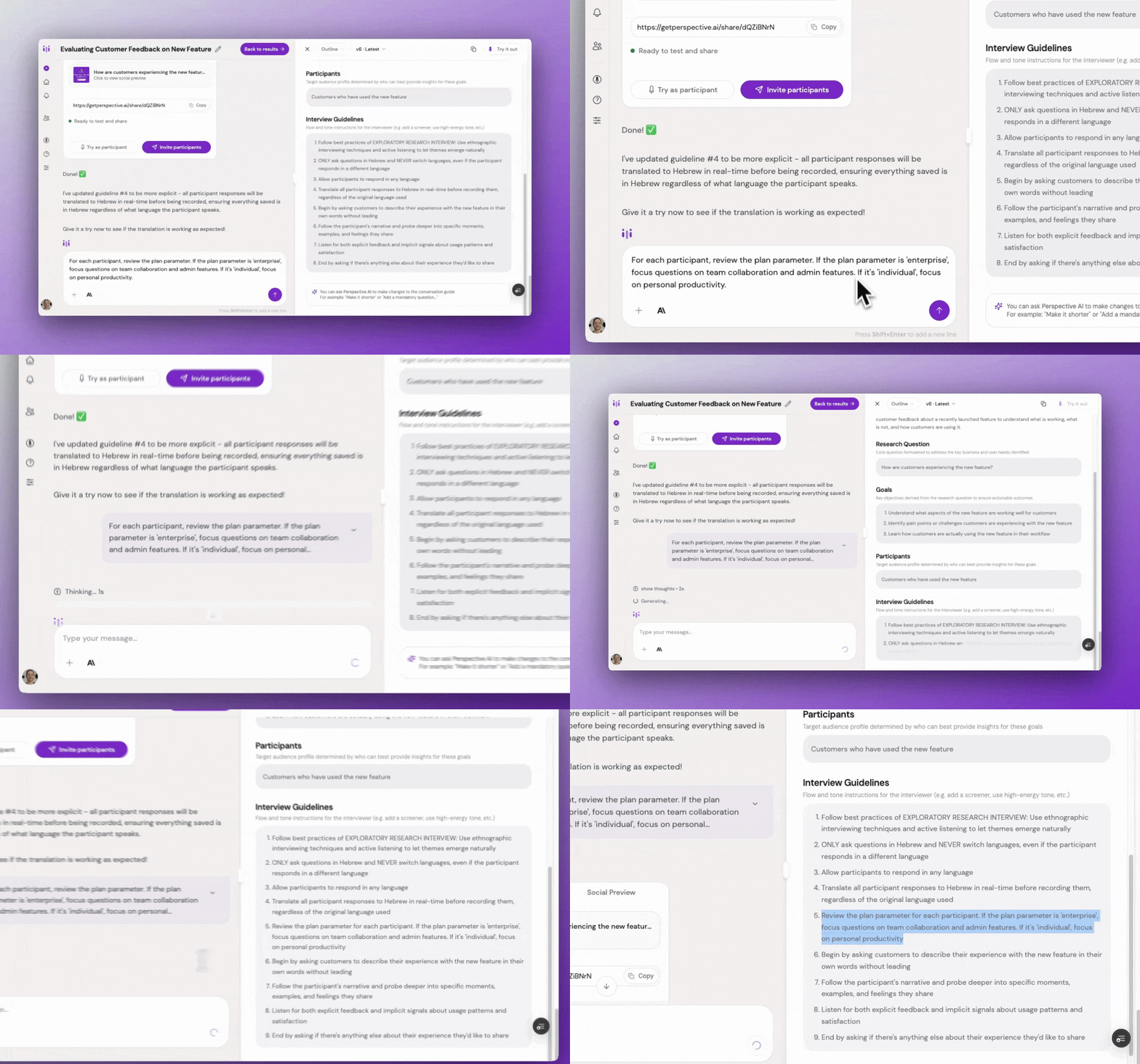
Outline settings with URL parameter instructions
Examples by Scenario
Scenario 1: Customer Feedback by Plan Tier
Goal: Interview customers across different plan tiers without asking their plan type
Parameter strings:
- Free tier:
plan=free&user_id=12345 - Pro tier:
plan=pro&user_id=67890 - Enterprise tier:
plan=enterprise&user_id=11223
Outcome: Perspective naturally adjusts questions based on plan tier, focusing on upgrade motivations for free users and advanced features for enterprise users.
Scenario 2: Multi-Channel Recruitment Campaign
Goal: Track which channels produce the best research participants
Parameter strings:
- Email:
source=email&campaign=nov2025&list=engaged_users - LinkedIn:
source=linkedin&campaign=nov2025&ad_set=pmm_targeting - In-app:
source=product&campaign=nov2025&trigger=feature_launch - Community:
source=community&campaign=nov2025&platform=slack
Outcome: Use the stored source metadata when reviewing response quality or analyzing recruitment channels.
Scenario 3: Onboarding Interview with Context
Goal: Interview new users without asking questions you already know answers to
Parameter string:
Outcome: Perspective skips basic qualifying questions and immediately explores how the user plans to use your product for project management with their small team.
Scenario 4: Beta Testing with Different Incentives
Goal: Offer different incentive structures based on user segment
Parameter strings:
- Power users:
segment=power_user&incentive_tier=premium - Regular users:
segment=regular&incentive_tier=standard - New users:
segment=new&incentive_tier=entry
Outcome: Present appropriate incentive messaging at interview completion based on the parameter value.
Best Practices
Keep parameter names consistent. Use the same naming convention across all your research projects to avoid confusion.
Document your parameters. Maintain a reference sheet of what each parameter means and which values are valid.
Don't overload URLs. Include only parameters that improve the interview experience. Too many parameters make URLs difficult to manage.
Use URL encoding for special characters. Spaces, ampersands, and special characters should be properly encoded.
Test parameter variations. Before launching, test URLs with different parameter combinations to ensure they behave as expected.
Respect privacy. Don't pass sensitive personal information through URL parameters. They're visible in browser history and server logs; use invite context for confidential details.
Combine with form fields. Use parameters for information you already have and form fields for information you need to collect.
Monitor parameter usage. Track which parameters actually improve your research and eliminate ones that don't add value.
Common Pitfalls & Fixes
Parameters not recognized → Ensure parameter names don't contain spaces or special characters. Use underscores or camelCase instead.
Inconsistent parameter values → Standardize values across your systems. "Enterprise," "enterprise," and "ENTERPRISE" are treated as different values.
Overly complex URLs → Limit to 5-7 meaningful parameters. More than that becomes difficult to manage and debug.
Missing parameters break logic → Always test what happens when expected parameters are missing. Build fallback behavior.
Hardcoding assumptions → Don't assume parameter values are always present or accurate. Validate on the backend when using parameters for critical branching.
Not testing edge cases → Test with unusual parameter values, missing parameters, and malformed URLs before launching.
Privacy concerns → Avoid passing PII (personally identifiable information) in URLs. Use anonymous identifiers and look up details server-side if needed.
Technical Considerations
Parameter encoding: Special characters must be URL-encoded:
- Space →
%20or+ - Ampersand →
%26 - Equals →
%3D
Parameter order: Order doesn't matter, but consistency helps with tracking and debugging.
Character limits: Perspective forwards sanitized parameter values up to 50 characters each. Most browsers support URLs up to 2,000 characters, but keep yours much shorter for reliability.
Reserved parameters: Names like name, email, invite, embed, embed_type, theme, mode, voice, scroll, returnUrl, hideProgress, hideGreeting, hideBranding, enableFullScreen, and defaultInteraction are used by the interview experience and are not stored as participant metadata. The SDK additionally reserves brand.* color tokens.
Case sensitivity: Parameters are typically case-sensitive. Be consistent with capitalization.
When to Use URL Parameters
Use URL parameters when you need to pass lightweight context into a conversation link or embed.