Embed Interviews on Your Website or App
Updated: June 2, 2026
Embedded Interviews let you deploy Perspective AI anywhere your users are—on marketing pages, inside product flows, or on support portals. Instead of sending participants to a separate link, the interview lives directly in your experience.
How to Embed an Interview
1. Open the Embed Panel
Open a Perspective and select Invite participants in the header. If you are on the Design page, use Next: Invite participants after the outline exists. Then choose Embed from the invitation options.
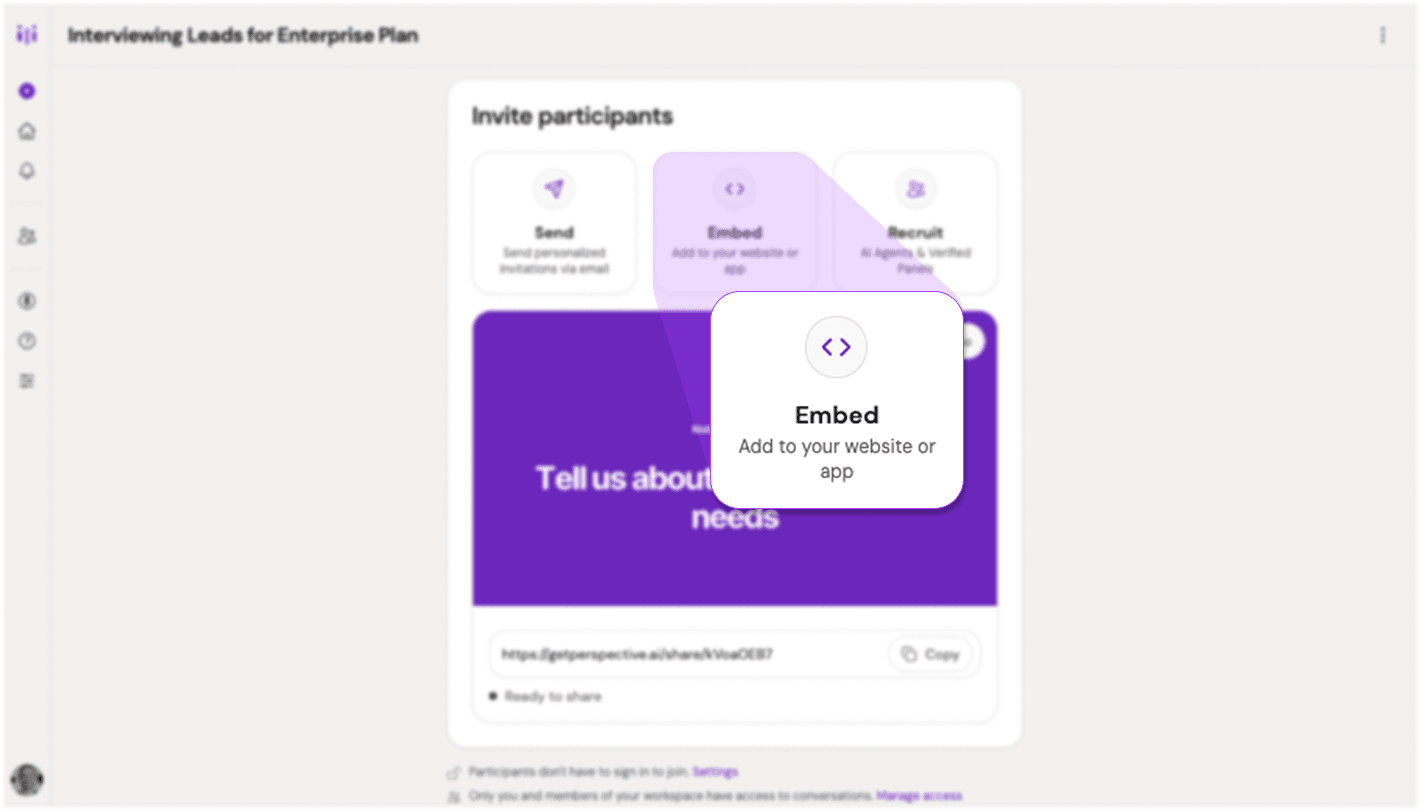
Embed option in the invite participants menu
2. Choose Your Embed Type
Perspective offers five embed categories:
Full Page – Displays the interview as a full-viewport experience. Best for standalone pages where the conversation is the primary content.
Inline Widget – Drops the interview directly into your page content. Ideal for contextual placement within articles, product pages, or dashboards. By default, it renders as a polished, self-contained card; if you give its container an explicit size, it fills that space edge to edge instead. Developers can fine-tune the card (or force either layout) with the frame options in Embed API.
Button – Triggers the interview in one of three styles:
- Popup: Modal overlay centered on screen
- Slider: Side panel that slides in from the edge; developers can use push mode when the slider should take its own column instead of covering the page
- Float: Floating bubble anchored to the corner
Choose Button for unobtrusive placement that doesn't interrupt page flow.
Auto Trigger – Opens a popup automatically after a timeout or on exit intent. You can choose whether it appears every time, once per session, or once per visitor.
Card – Shows a clickable preview card that opens the interview in a new tab. Useful for resource centers or when you want users to opt into a full-screen experience.
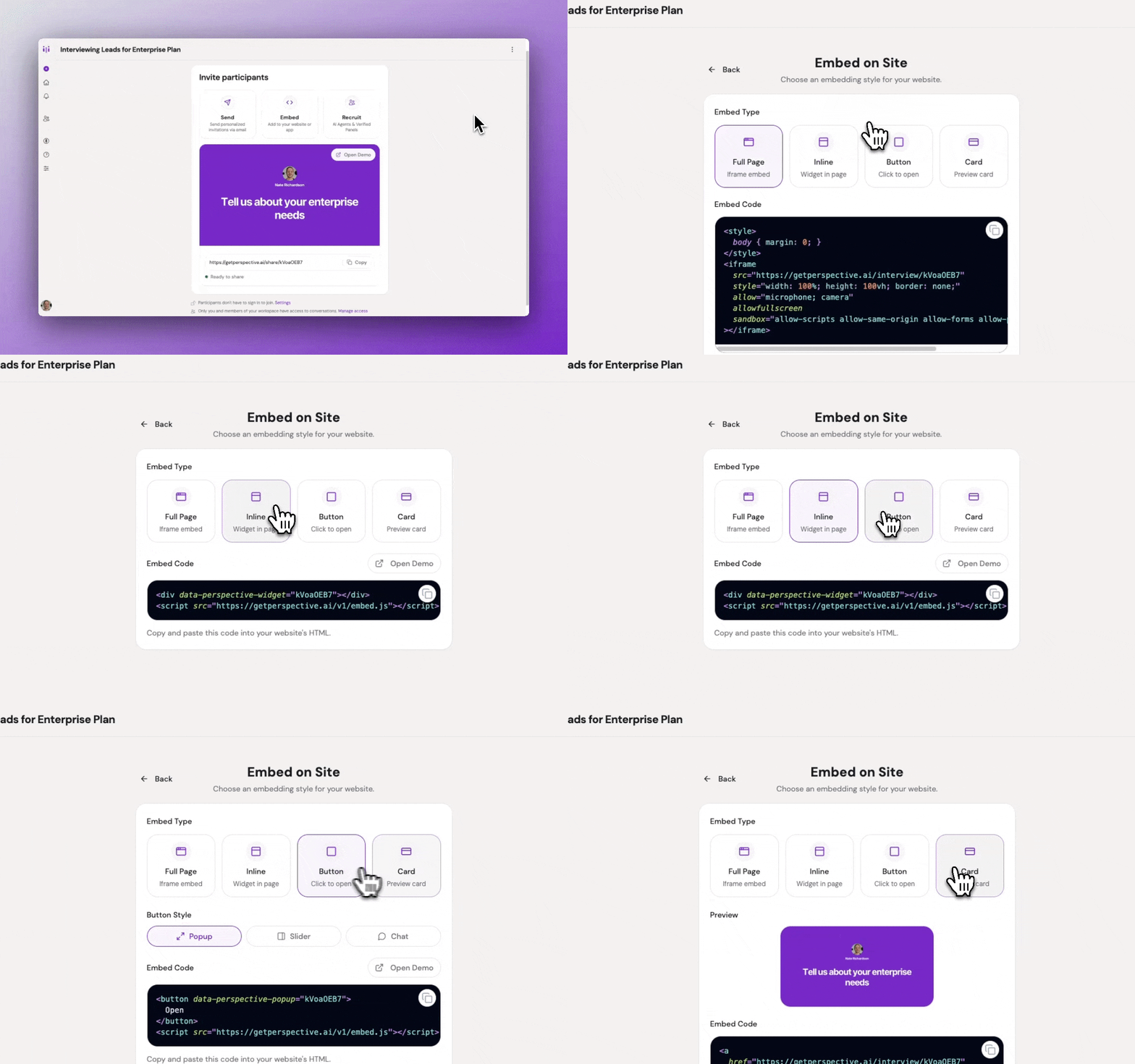
Five embed type options with Full Page selected
3. Configure and Copy Your Embed
Once you pick a type, the embed panel is organized into four tabs:
- Preview — See the embed in action before you ship it. Full Page, Inline, Button styles (Popup, Slider, Float), Auto Trigger, and Card all preview directly inside the panel.
- Code — Copy the snippet you'll paste into your site:
- React using
@perspective-ai/sdk-react - NPM/TypeScript using
@perspective-ai/sdk - Script using the hosted
perspective.jsscript and data attributes - HTML card for the Card option
- React using
- Coding agent — Copy a ready-made prompt that points Cursor, Claude Code, or any MCP-aware editor at the Perspective AI MCP server. The agent then generates your real embed snippet inside your codebase, with your actual research ID and configuration baked in.
- Customize — Adjust visual options. The available controls are covered in Visual Options below.
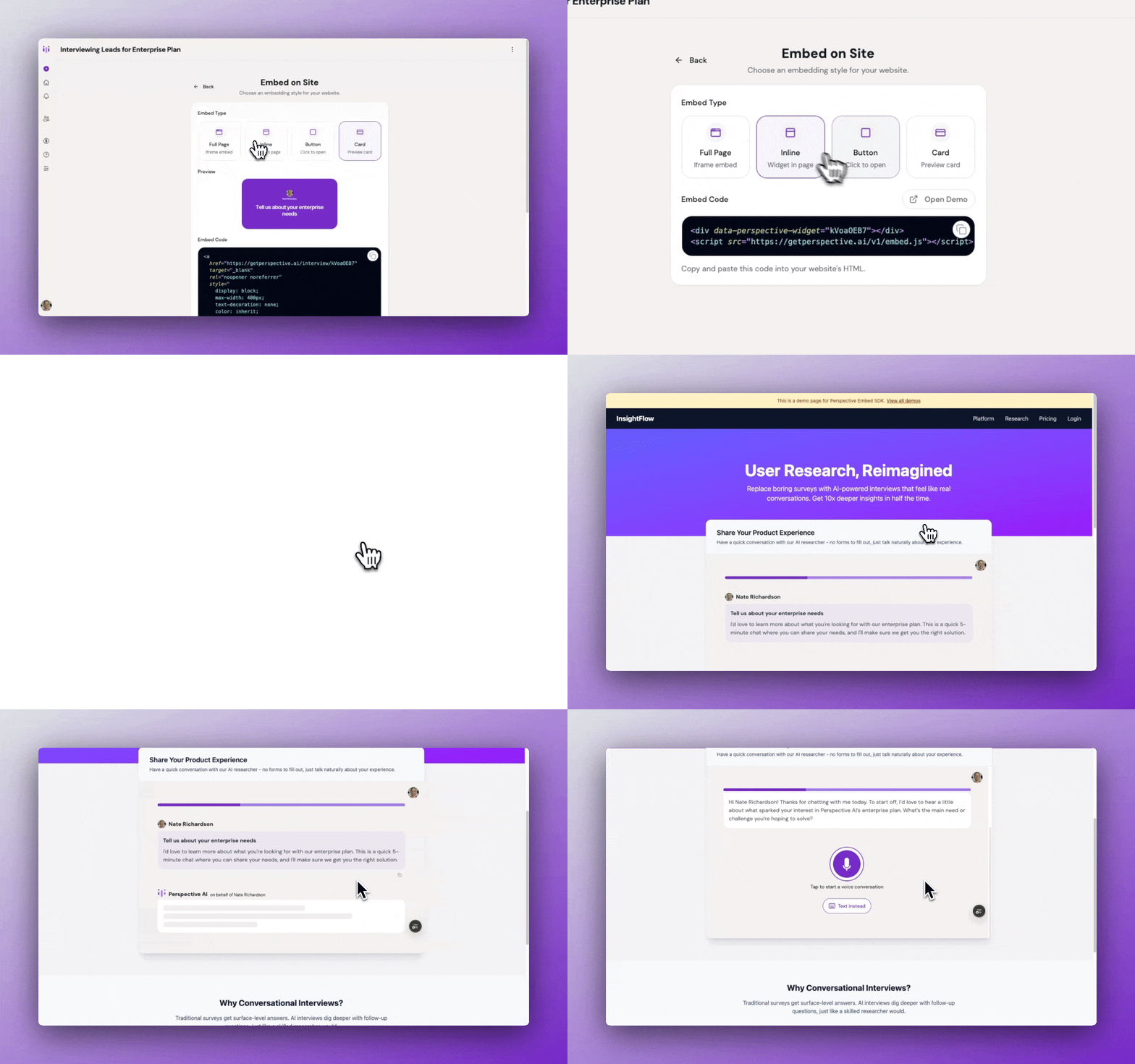
Inline embed preview showing interview in page
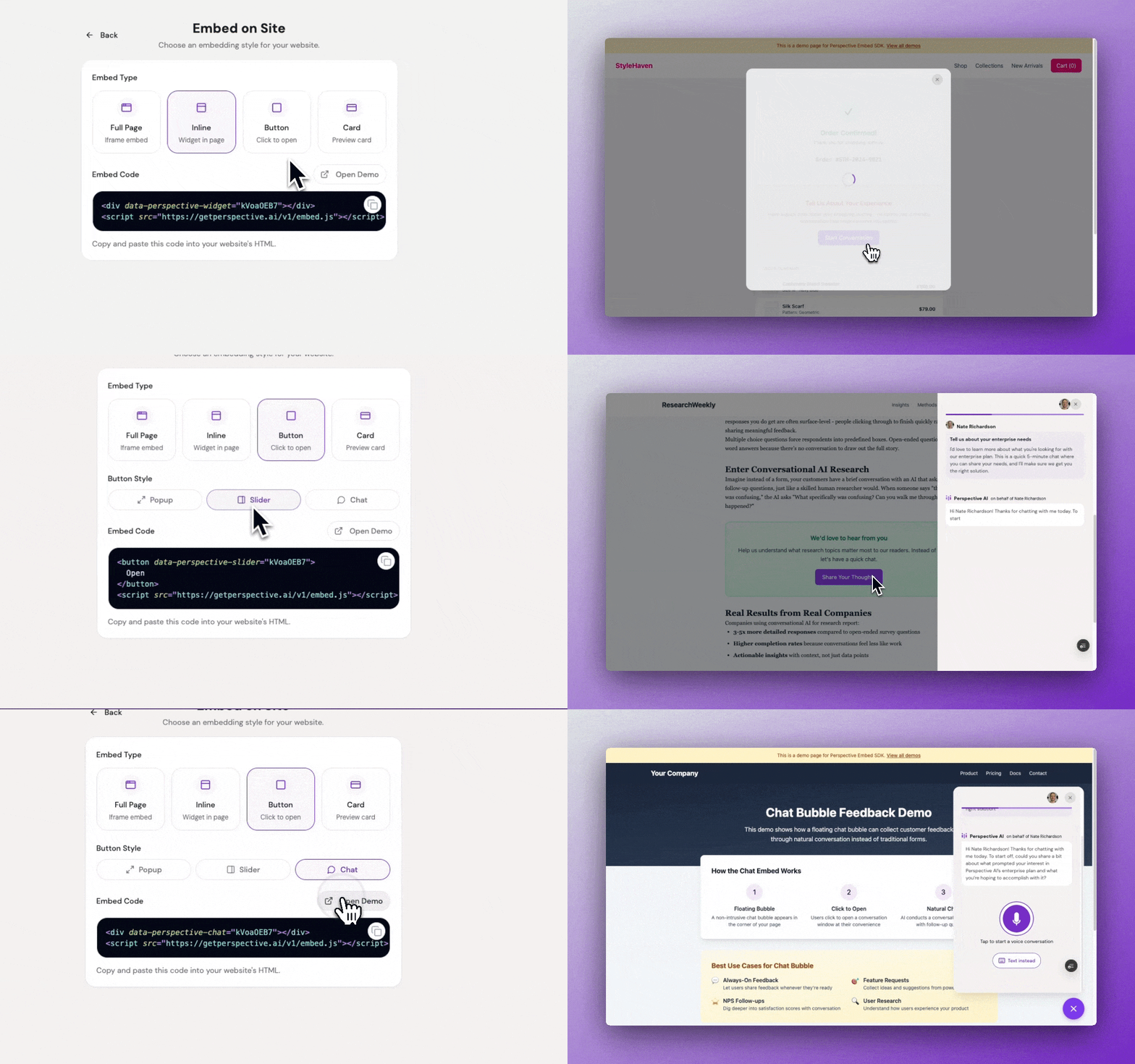
Button embed previews cycling through Popup, Slider, and Float styles
Visual Options
For SDK-based embeds, the embed panel can generate appearance parameters for:
- Showing or hiding conversation progress
- Showing or hiding the welcome greeting
- Showing or hiding the logo and brand header
- Allowing or hiding the fullscreen button
Float embeds also support launcher customization:
- Default icon, brand avatar, or custom image URL
- Launcher size
- Launcher shape
Float embeds can also control the welcome teaser — the message bubble that appears above the launcher:
- Show or hide the welcome teaser
- How long to wait before showing it
- Play or mute the teaser chime sound
Auto Trigger embeds support:
- Timeout delay from 1 to 60 seconds
- Exit-intent trigger
- Show every time, once per session, or once per visitor
Click Publish after changing visual options if you want those embed settings saved with the conversation. The generated snippets also include the relevant SDK parameters so your developer can paste them directly.
Passing Participant Context
Embeds can pass participant context the same way public links can.
For script embeds, use data-perspective-params:
For React or TypeScript SDK embeds, pass a params object. Custom params are stored as participant metadata and can be used by the agent, results, analysis, and automations. System params such as hideProgress, hideGreeting, hideBranding, and enableFullScreen control the experience and are not stored as participant metadata.
For the full parameter reference, see Embed API and Track Participant Context.
Best Practices
- Match embed type to context: Use Inline when the interview relates to specific page content. Use Button with Float style for persistent access across multiple pages.
- Test button styles: Try Popup, Slider, and Float styles to see which fits your site's interaction patterns.
- Use slider push mode for docs or apps: Push mode keeps the rest of the page interactive, which works well when users need to read or click behind the conversation while the slider stays open.
- Preview before deploying: Use the "Open Demo" link to test the embed experience before adding it to your site.
- Track by placement: Use URL parameters such as
source=pricing_pageorplacement=footer_floatto compare which placements drive the most engagement. - Use the SDK when possible: The SDK handles sizing, navigation, callbacks, theming, and lifecycle events. Direct iframe embeds require more manual handling.
- Handle redirects in apps: In single-page apps, use SDK callbacks such as
onNavigateif you need to route without a full page reload.
Common Pitfalls & Fixes
Microphone access blocked
If voice mode shows "Microphone access blocked" even after the visitor allows the mic, the interview is probably running inside a second iframe added by your website builder (Wix, Squarespace, and similar). Browsers only pass microphone access down to an iframe when every parent iframe also allows it. The Perspective embed already requests microphone access, but the wrapper iframe your builder adds may not.
Enable microphone access on the embed or HTML element in your builder so the wrapper iframe's allow attribute includes microphone *. Permissions are separated by semicolons, so combine it with any existing values — for example allow="microphone *; fullscreen". The * matters: because the interview loads from a different domain than the wrapper, a plain microphone only covers the wrapper's own domain and still blocks the interview. Once the wrapper forwards the microphone across origins, voice mode works. For the developer-level details, see Microphone access in nested iframes.
Embed code not rendering on site
Verify the script tag is placed before the closing </body> tag and that no ad blockers are interfering with the Perspective domain.
Button embed doesn't match site styling
Button embeds inherit basic styling. For custom button appearance, use the generated data attributes and apply your own CSS to the button element.
Card preview appears blank
Card embeds generate a preview image when you first create the outline. If the preview is missing, re-save the outline to regenerate it.
Redirects do not work in a direct iframe
Prefer the SDK. If you must use a direct iframe, add the postMessage listener shown in the Embed API.
Params are not reaching the agent
Make sure you are using data-perspective-params or SDK params for custom context. Reserved system params control the embed and are not stored as participant metadata.