Import Conversations
Updated: August 7, 2026
Import transcripts or recordings from meetings held in other apps into an agent. Your team can view everything in one place and analyze those conversations alongside the ones your agents ran.
Import is in Beta. Use Share feedback in the dialog, or tell us what is missing here.
Open Agents in the sidebar, select an agent, then open its Conversations tab. Import sits just above the conversation list.

The Conversations tab, with Import and Export above the conversation list
Imports run in the background, so you can close the dialog and keep working. Perspective emails you when the import finishes.
Paste a Transcript
Paste the text of a conversation you ran elsewhere. Give the participant's name so Perspective knows whose answers are whose. Their email is optional.
Perspective reads these speaker formats:
Perspective works out who is the interviewer and who is the participant from the speaker names and the name you entered. If it cannot tell them apart confidently, the transcript still imports and is flagged so you can check it.
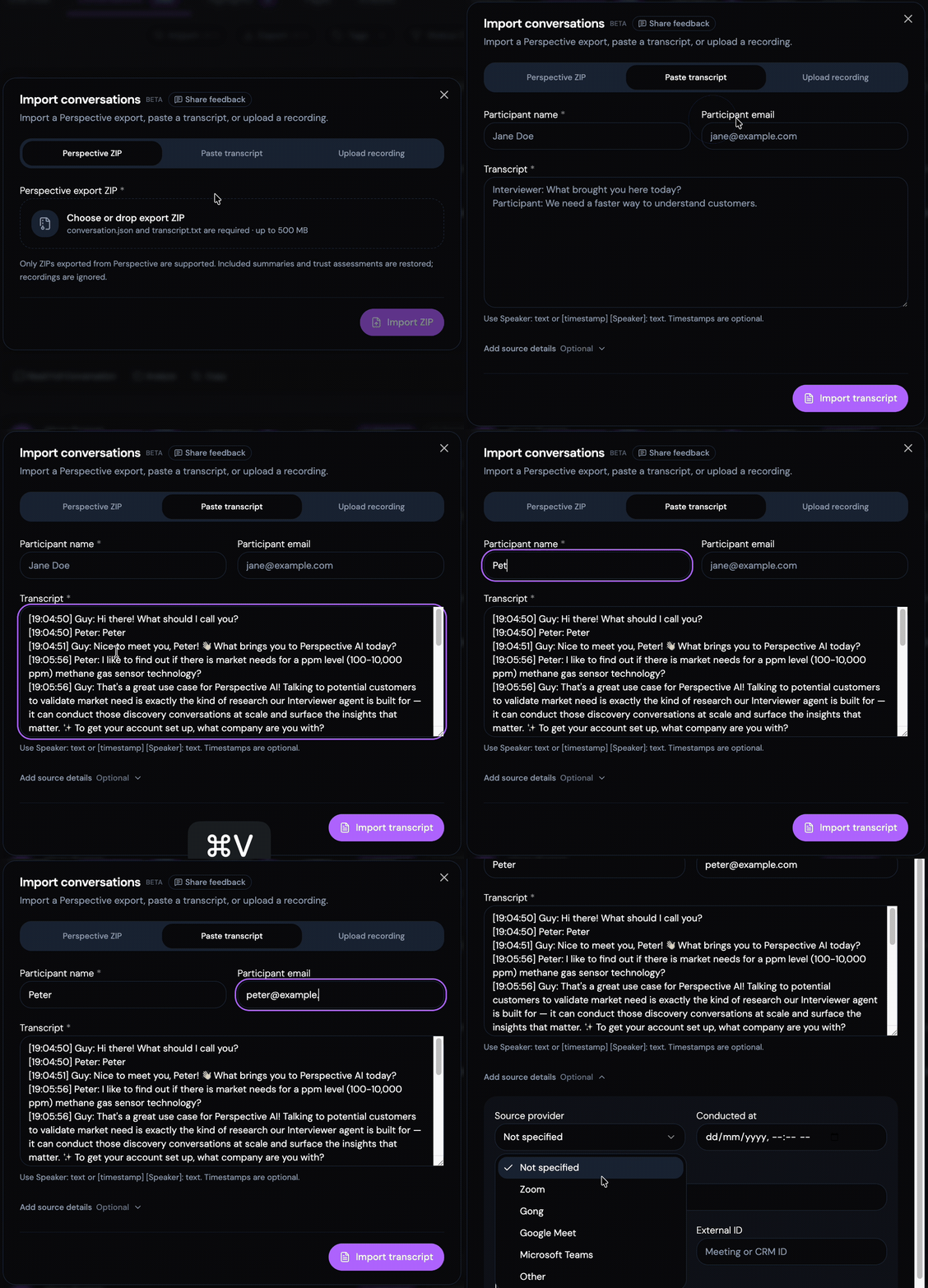
Pasting a transcript into the import dialog and adding source details
Upload a Recording
Upload an audio or video file up to 25 MB in MP3, M4A, WAV, WebM, MP4, or MPEG. Give the participant's name.
You do not need a transcript first. Perspective transcribes the recording, works out who said what, and imports the result as a conversation.
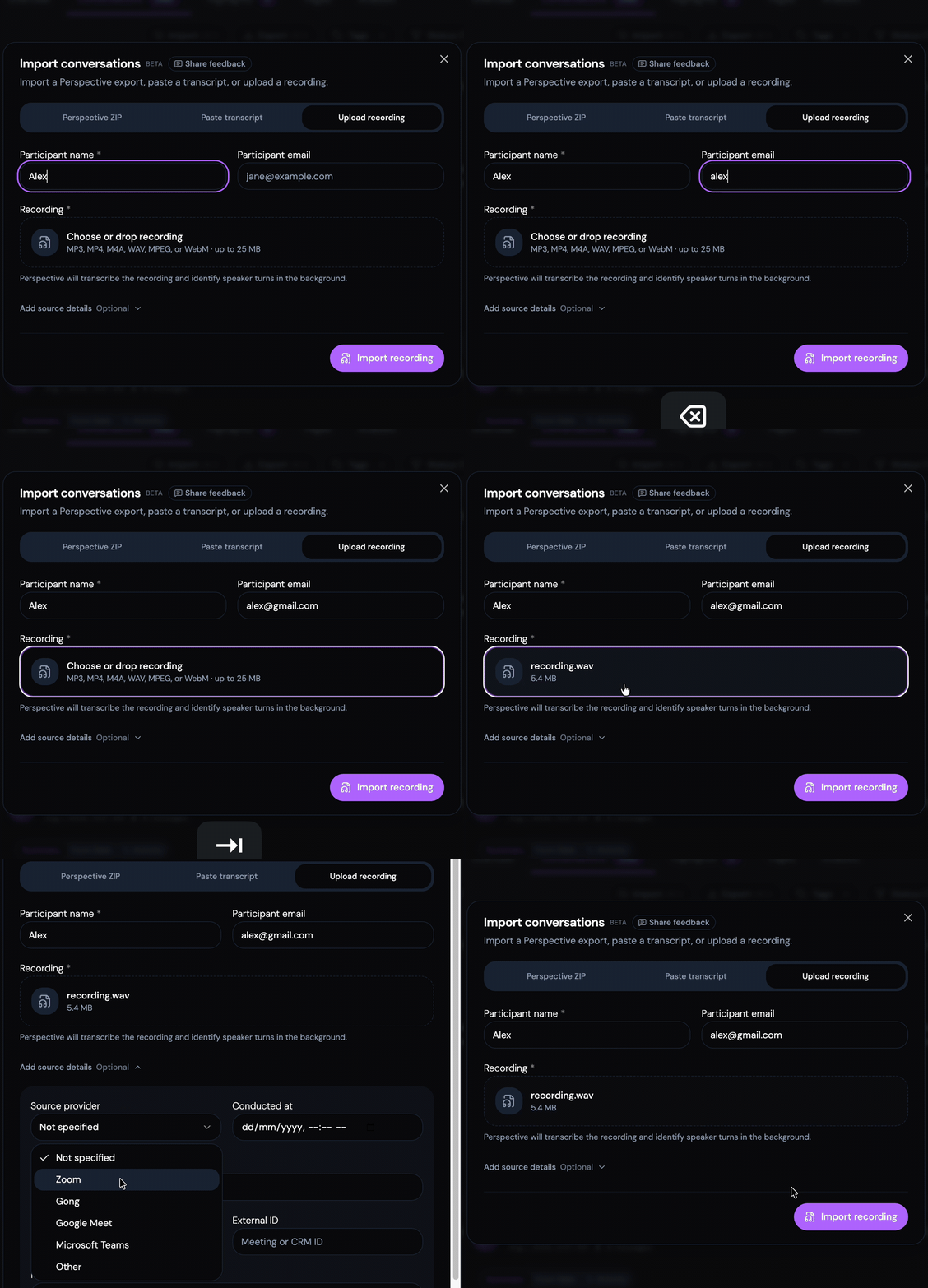
Dropping a recording into the import dialog and tagging its source
Import a Perspective ZIP
Import a ZIP that came from Perspective's export, up to 500 MB. Use this to move conversations between agents or workspaces, or to bring an archive back.
Summaries and trust assessments in the ZIP come back with the conversations rather than being generated again, so what you exported is what you get. Recordings inside the ZIP are skipped.
Each conversation folder needs conversation.json and transcript.txt. Only ZIPs that Perspective produced are supported.
Say Where It Came From
When you paste a transcript or upload a recording, expand the optional details section to record where the conversation came from:
- Source provider - Zoom, Gong, Google Meet, Microsoft Teams, Other, or Not specified
- Date conducted
- Provider name - the research agency or call recorder, when it is not in the list
- Label - a short description such as "Customer discovery call"
- External URL and External ID - a link back to the meeting or a CRM record
- Notes - context, consent notes, or anything reviewers should know
These are worth filling in. Six months from now, "where did this one come from?" is a hard question to answer from a transcript alone. The details show up on the conversation, and analysis uses them to weigh an imported conversation properly.
What Happens Next
Imported conversations land in the Conversations list with an Imported badge showing where they came from. Open one and select Show more for the full source details, including when it was imported and who imported it.
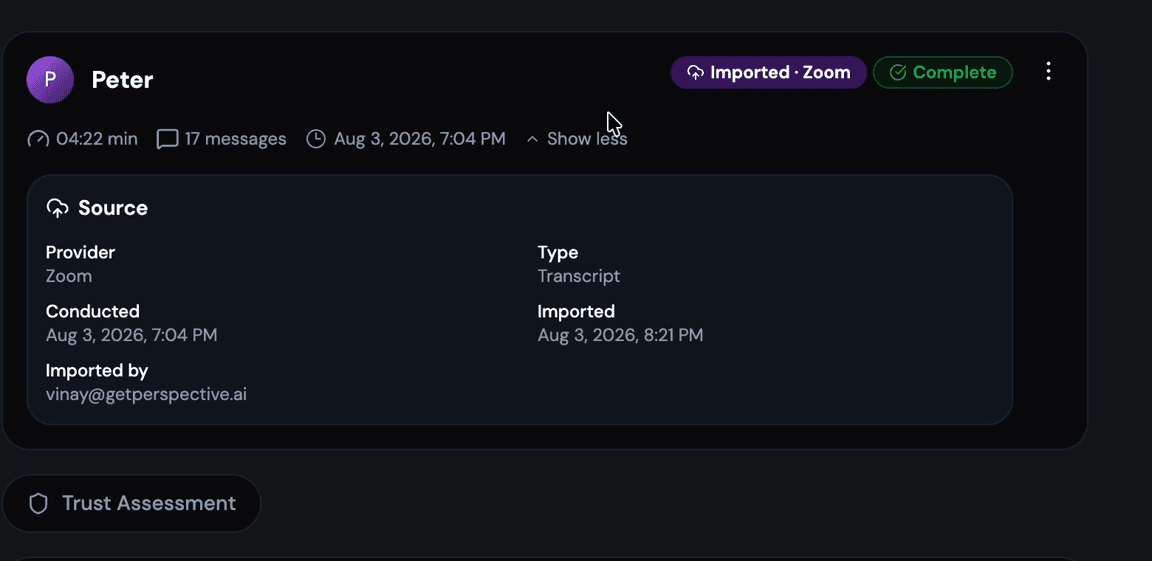
Imported conversation showing its source provider, type, and import details
Completed conversations that arrive without a summary get analyzed, so they end up with a summary and trust assessment like everything else. Conversations that already have a summary keep the one they came with.
From there they behave like conversations Perspective ran itself. They show up in Analysis Sessions, in search, and in the data analysis and transcript exploration tools. Ask a question about your conversations and the imported ones answer it too.
Limits
Related Docs
- Export Conversations - produce the ZIP that a Perspective ZIP import expects.
- Conversation Results - review imported conversations alongside the rest.
- Analysis Sessions - ask questions across imported and native conversations together.