Adding Form Fields to Conversation Outlines
Updated: March 30, 2026
Form fields let you capture the same details across conversations without interrupting the participant. Instead of showing a rigid questionnaire, the agent extracts specific data points from what people say and shows them as structured, scannable data after the conversation.
Use Cases
Form fields are ideal when you need to:
- Collect consistent data across conversations - Ensure every participant provides the same core information
- Surface key details - See critical facts without reading full transcripts
- Segment participants - Use structured data to group and analyze responses by specific attributes
- Track specific metrics - Capture quantifiable or categorical information alongside qualitative feedback
Common use cases:
- Onboarding interviews capturing use cases, goals, and referral sources
- Feature feedback sessions tracking current usage patterns and pain points
- Customer research identifying company size, role, and decision-making authority
- User testing documenting technical environment and experience levels
Adding Form Fields to Your Research Outline
1. Open your research outline
Navigate to the research outline where you want to add form fields. You can add fields to new or existing outlines.
2. Instruct Perspective conversationally
Tell Perspective exactly what information you want to capture. Be specific about the fields you need.
Example instruction:
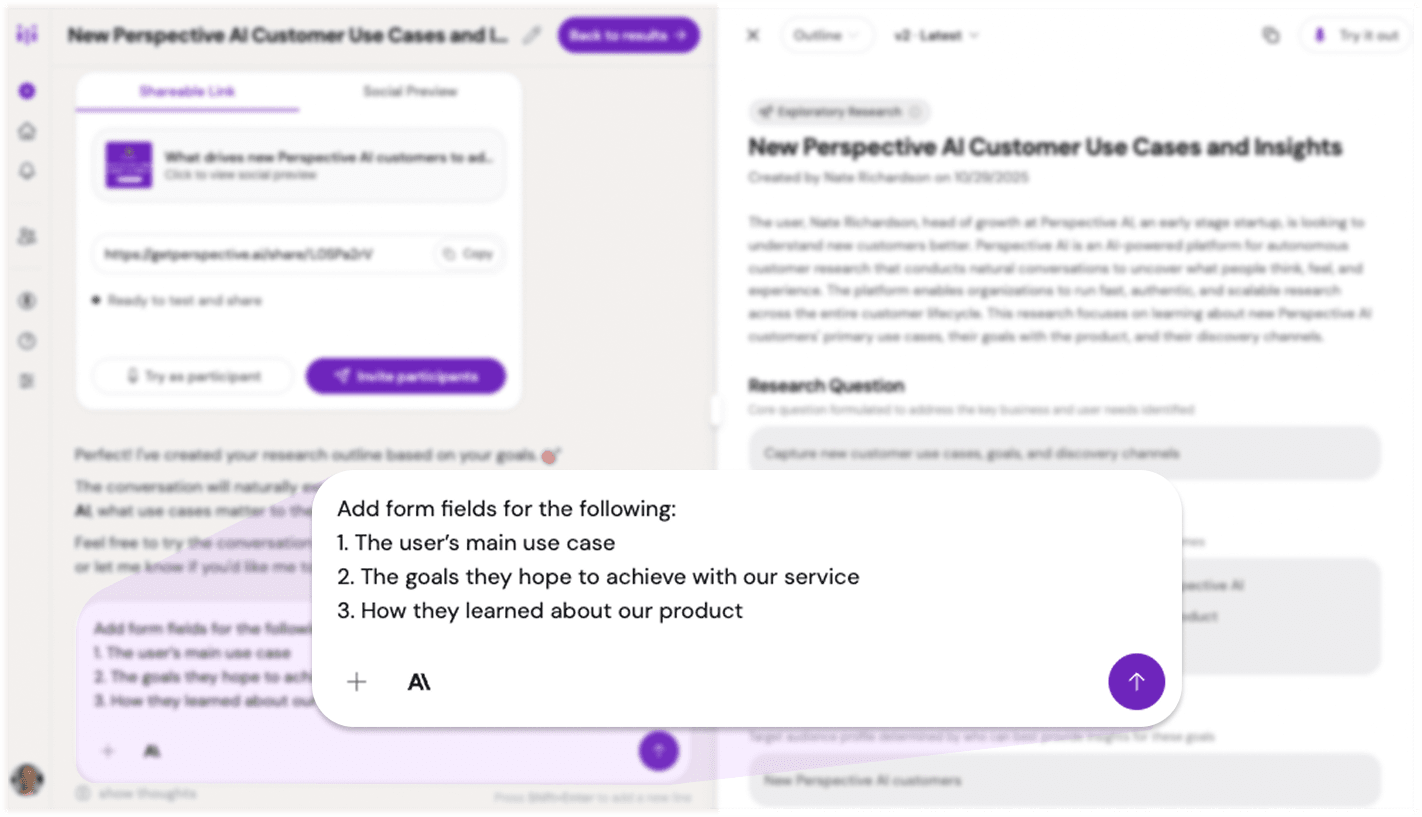
Chat interface showing form field request
3. Review the updated outline
The research outline will update within a few seconds. Your new form fields will appear in the outline structure alongside your other research components.
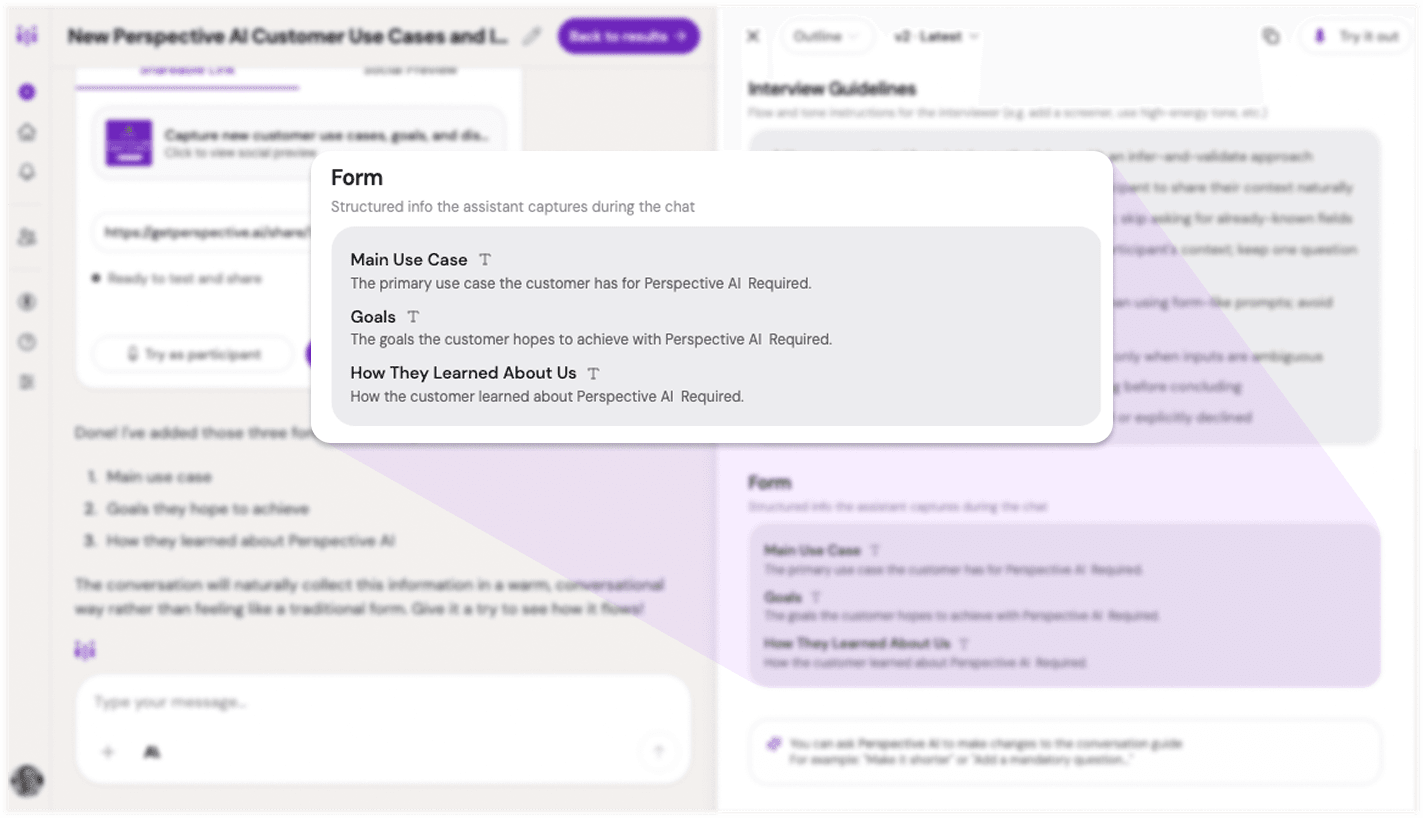
Research outline showing newly added form fields
Your form fields are now active. The agent will infer or collect them during conversations that use this outline.
Viewing Form Field Results
In post-interview emails
Team post-interview summary emails include form fields and the participant's answers at the top when structured data is available, making key information immediately visible.

Email showing form field responses
In the product interface
Open the Form Data tab for any conversation summary directly in Perspective. This view displays all structured data captured during the interview.
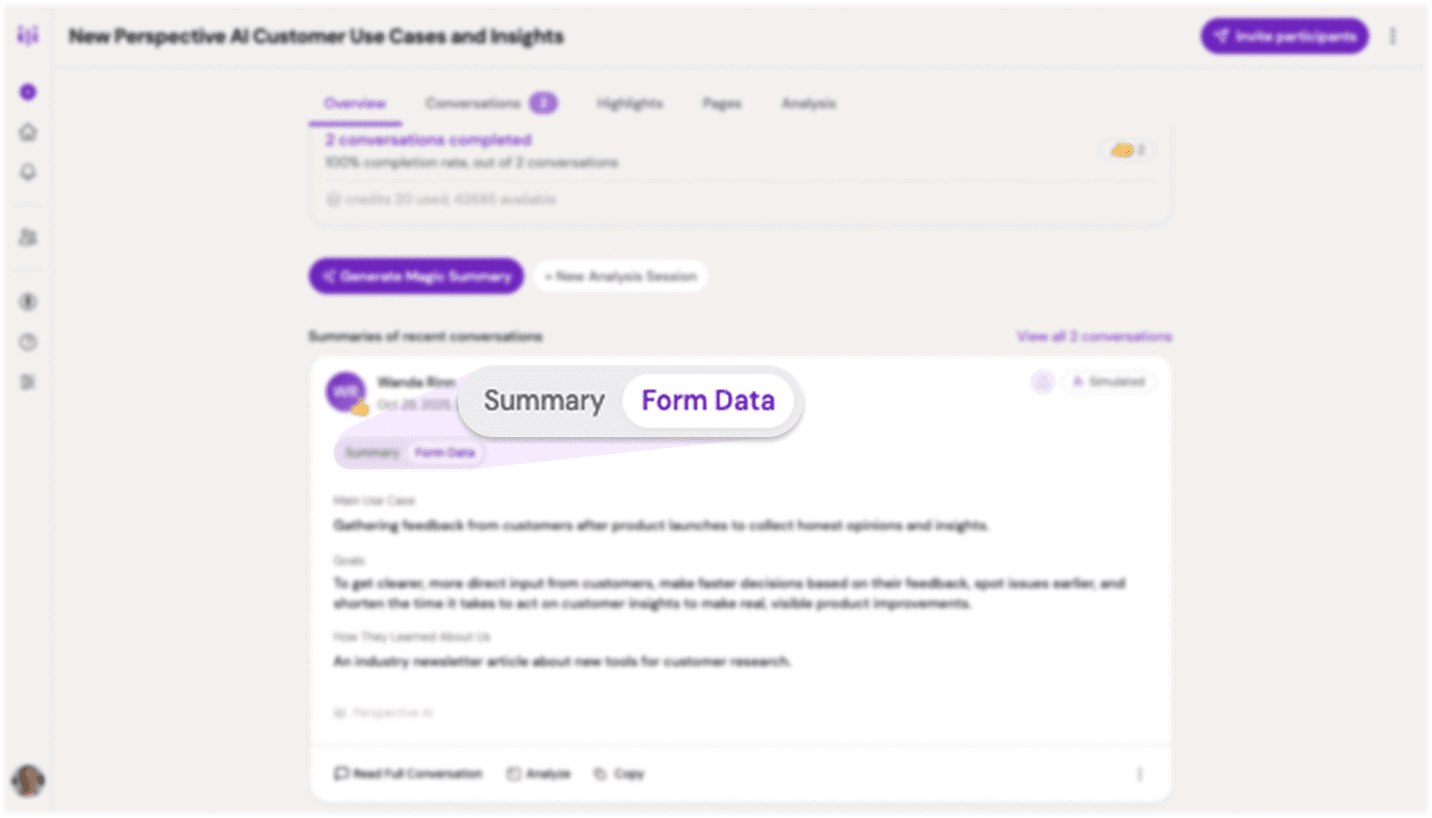
Form fields view in conversation summary
In automations and analysis
Form field values are stored as structured output. They are included in webhook and automation payloads, can be sent to downstream tools, and can be analyzed in Analysis Sessions.
For delivery patterns, see Automations and Automation Recipes.
Best Practices
Keep fields focused. Limit form fields to 3-7 essential data points. Too many fields can make the interview feel like a checklist rather than a conversation.
Use clear, specific field names. Instead of "Background," use "Years of experience in role" or "Current platform used." Specificity helps the AI extract accurate information.
Let conversation guide collection. Form fields work best when they capture information that naturally emerges during conversation, not forced questions.
Combine with open-ended goals. Use form fields for structured data while your research goals drive deeper qualitative exploration.
Review fields after testing. Run a practice interview to ensure form fields capture the right level of detail and aren't creating awkward conversational moments.
Common Pitfalls & Fixes
Too many form fields → Reduce to only essential data points. If you need 10+ pieces of structured data, consider whether some belong in participant screening instead.
Vague field descriptions → Be specific. "Company info" is vague; "Company size (number of employees)" is clear and actionable.
Duplicating research goals → Form fields should capture factual, structured data. Save exploratory questions and deeper insights for your research goals.
Overlooking the data → Form fields are only valuable if you use them. Build a habit of reviewing form field summaries before diving into full transcripts.
When to Use Form Fields
Add form fields when you need consistent structured data alongside the transcript.